
Here is the comprehensive SEO-optimized version of the article translated into English, tailored for a global audience while maintaining the brand authority of OnlQR.
How to Scan QR Codes from Screenshots on iPhone & Android Without an App (2026 Guide)
In today’s digital era, QR (Quick Response) codes have become an essential part of our daily lives. From paying bills and accessing websites to connecting to Wi-Fi and verifying product origins, everything is encapsulated in a small black-and-white square.
However, a common dilemma arises: You see a QR code on Facebook, Instagram, or a message sent by a friend. You take a screenshot, but how do you “scan” that image when it is already inside your phone?
Many people mistakenly believe they need a second phone to scan the screen or must download complex third-party apps. In reality, you can scan a QR code from a phone screenshot without an app using just a few simple built-in features. This OnlQR guide will walk you through the process from A to Z.
1. Why Scan QR Codes Directly from Screenshots?
Knowing how to scan directly from your photo gallery offers several major advantages:
- Ultimate Convenience: No need to borrow someone else’s phone or print the image.
- Save Storage Space: Avoid installing heavy scanning apps if you only use them occasionally.
- Instant Processing: Especially useful when browsing social media and encountering a promotion or registration link.
- Security: Using built-in OS features or reputable websites like OnlQR helps you avoid malicious third-party apps that might collect your data.
2. How to Scan QR Codes from Screenshots on iPhone (iOS)
Apple has integrated powerful Artificial Intelligence (AI) into iOS. You don’t need any app other than the native Photos app.
Step 1: Capture the QR Code
When you see a QR code, take a screenshot (Power + Volume Up for newer iPhones, or Power + Home for older models).
Step 2: Open the Photos App
Navigate to the screenshot you just saved.
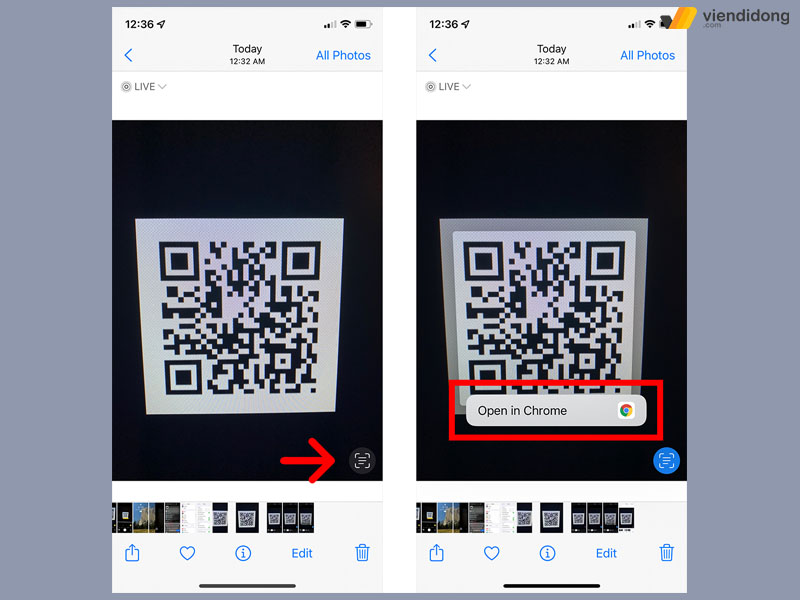
Step 3: Use the Live Text Feature
In the bottom right corner of the image, you will see a small square icon with lines (the Live Text icon).
- Tap that icon.
- Then, long-press directly on the QR code within the photo.
- A menu will appear with options such as “Open in Safari,” “Copy Link,” or “Share.”
Note: This feature is supported on iOS 15 and later. If you are using an older device, refer to the online scanning method below.
3. How to Scan QR Codes from Screenshots on Android (Google Lens)
Most modern Android phones (Samsung, Oppo, Xiaomi, Google Pixel…) have Google Lens integrated directly into the system or the Chrome browser.
Method 1: Using the Gallery/Photos App
- Open the screenshot containing the QR code.
- Tap the Lens icon (a colorful camera-lens shape) usually located in the bottom toolbar.
- Google Lens will automatically detect the QR code and display the link. Simply tap the link to visit the destination.
Method 2: Using the Google Search Widget
If you have the Google search bar on your home screen:
- Tap the Camera icon on the right side of the search bar.
- Select the Photo Gallery icon (usually on the left).
- Choose the screenshot containing the QR code.
4. Scan QR Codes Online via Website (For All Devices)
If your device doesn’t support the features above, or if you are using a computer, online QR scanning tools are the best solution. One of the most reliable platforms is the OnlQR Online Scanner.
Why use the OnlQR Online Scanner?
- No Installation: Works directly on any web browser (Safari, Chrome, Samsung Internet).
- High Accuracy: Recognizes blurry, skewed, or low-resolution QR codes.
- Safety & Security: As a leader in barcode and QR solutions in Vietnam, OnlQR ensures your data is handled securely.
Steps to follow:
- Visit the link: OnlQR QR Code Online Scanner
- Click the “Upload Image” button or the camera icon.
- Select the screenshot from your library.
- The system will process it instantly and display the results (Website link, product info, or hidden text).
5. Comparison of Scanning Methods
| Method | Supported Devices | Pros | Cons |
| iOS Live Text | iPhone (iOS 15+) | Fastest, deeply integrated | Apple devices only |
| Google Lens | Android, iPhone | Highly intelligent, versatile | Requires Google App on iOS |
| Zalo/Social Apps | All | Familiar, easy to use | Requires opening the app |
| OnlQR Online | All (Web) | No install, high security | Requires Internet connection |
6. Pro-Tips for 100% Scanning Success
Sometimes the device might fail to recognize the code. Here are the most common causes and fixes:
- Image Quality: If the screenshot is blurry or the QR code is partially cut off, the AI won’t read it. Ensure the code is clear and fully visible.
- Screen Brightness: When taking the screenshot, keep your brightness at a medium-to-high level to ensure the contrast between the black and white modules is sharp.
- Small QR Codes: If the QR code is tiny (e.g., a small part of a long webpage), crop the image to focus only on the code before scanning.
- Expired Codes: Some “Dynamic” QR codes have expiration dates. If it doesn’t work, the link might no longer be active.
7. The Importance of QR Codes in Traceability (OnlQR’s Vision)
Beyond just opening links, scanning QR codes on product packaging is vital for consumer protection. With OnlQR’s technology, a QR code is more than just a link—it is the product’s “Identity Card.”
When you scan a product QR code via the OnlQR ecosystem, you gain access to:
- Manufacturer Information: Company name, address, and tax ID.
- Product Details: Ingredients, expiry dates, and usage instructions.
- Authentication: Whether the product has been verified by OnlQR (reducing the risk of counterfeits).
- Community Reviews: See what other shoppers are saying about the item.
8. Frequently Asked Questions (FAQs)
Is it safe to scan QR codes online?
Yes, provided you use reputable sites like OnlQR. Be cautious of unknown websites filled with pop-up ads, as they may lead to phishing sites.
Why doesn’t my iPhone show the Live Text icon?
Live Text requires an iPhone with an A12 Bionic chip or newer (iPhone XS, XR, and later) running at least iOS 15.
Can I scan a QR code from a video?
Yes. Simply pause the video at the frame where the QR code is visible, take a screenshot, and then follow the steps mentioned above.
9. Conclusion
Scanning a QR code from a screenshot is no longer a challenge if you know these tricks. Whether you are an iPhone lover, an Android enthusiast, or a desktop user, there is always a free and fast tool available.
Remember, a QR code is a gateway to information. To ensure safety and receive the most accurate product data, don’t forget to use solutions provided by OnlQR —your trusted partner in market transparency.
Looking for QR Solutions for Your Business?
If you are a business owner looking to implement a professional QR code system for traceability and anti-counterfeiting,OnlQR is here to help.